Deploying Azure Cloud Service using Release Management
Feb 9, 2015Roopesh Nair
Summary
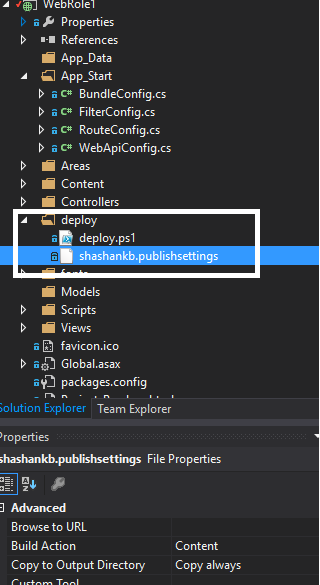
This post provides a detailed, step-by-step guide on how to deploy an Azure Cloud Service using Release Management. It covers customizing the Visual Studio solution to include deployment scripts (deploy.ps1) and publish settings files, ensuring they are copied to the build drop. It also explains how to configure the VSO build definition to generate the cloud service packages and includes instructions for preparing the target deployment server by installing WMF 4.0 and Azure PowerShell. Finally, it outlines how to configure a Release Template in Release Management to execute the deployment scripts, specifying parameters like the target slot, cloud service name, storage account, package location, and publish settings file.
More from the Azure Cloud Service Deployment with Release Management trail
- DevOps style deployment in Visual Studio 2015 preview - Sharing deployment configuration with team
- DevOps style deployment in Visual Studio 2015 preview - A detailed look
- Announcing DevOps style deployments using Visual Studio 2015 Preview and Azure
- Deploying and testing web applications using Release Management
- How to install RM Azure extension and use the Azure VM in Release Management