Monitoring Custom Performance Counters in Application Insights
Apr 21, 2014Charles Sterling
Summary
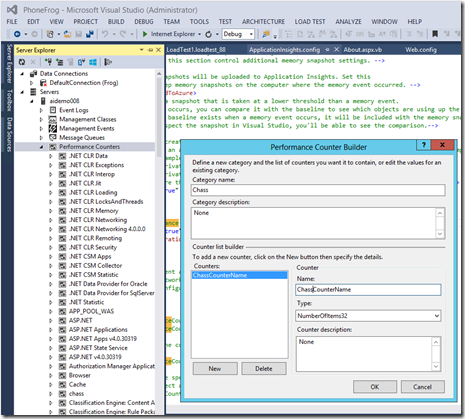
This post details how to configure Application Insights to monitor custom performance counters. It outlines the steps to create a performance counter in Visual Studio Server Explorer, increment it from an application (demonstrated with VB.NET code), and then add the counter to the Application Insights configuration file using the format 'categorynamecountername'. It references MSDN documentation for further details.
More from the Application Insights Deployment Markers trail
- Issue with using Application Insights with load tests
- Monitor Team Services web extensions with Visual Studio Application Insights
- Getting Application Insights counters with Cloud-based Load Testing
- Application Insights: Choose your own Performance Counters
- Introducing the Application Insights SDK for Java